Free JPG to STL Converter

Convert JPG and JPEG files to STL online for free with high-quality results. This web-based converter runs in your browser with no software download required and produces clean, 3D-print-ready STL files.

What You Get with Meshy's Image to 3D Converter

AI Generates Geometry

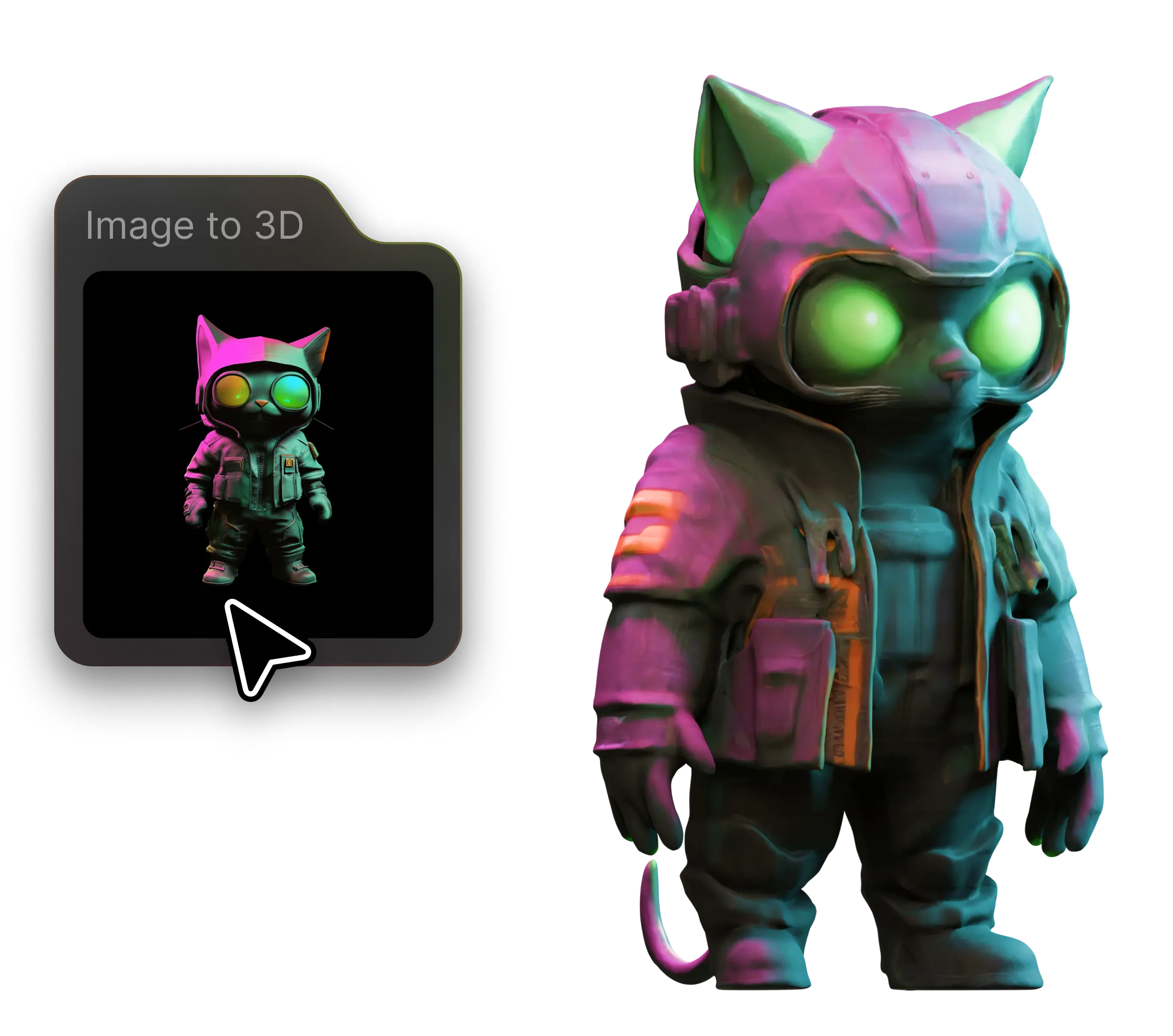
Upload a single JPG, PNG or WEBP and Meshy's AI builds real 3D geometry from it — not a flat extrusion, but a full model with depth and volume.

Wide Range of Styles

Turn photos, concept art, logos and illustrations into 3D with stylized outputs that keep your source's character.

No Install, No Signup

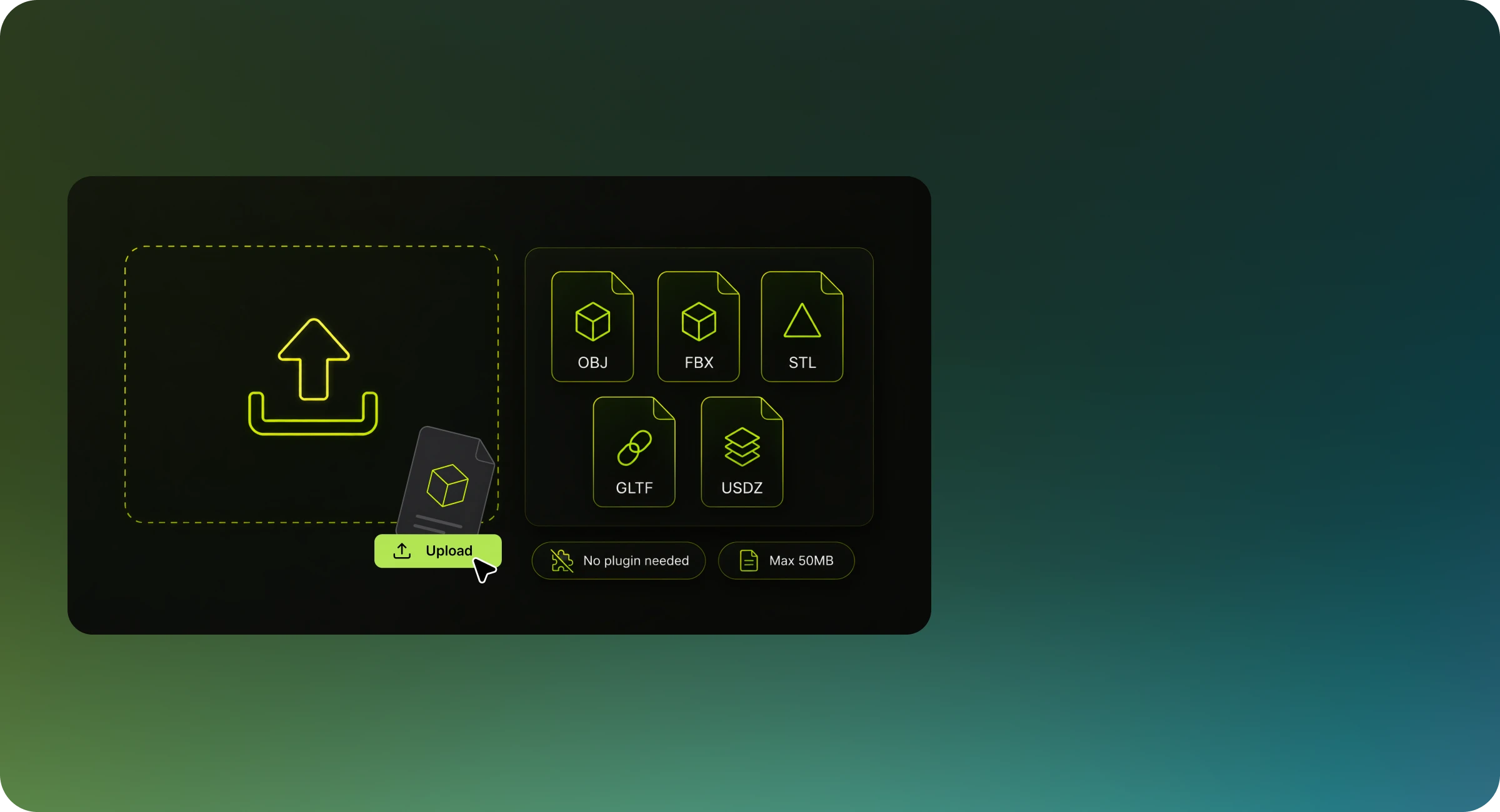
Everything works in the browser: upload an image, the AI generates your model online, and you download a ready-to-use 3D file.

Everything You Need to Convert 3D Files

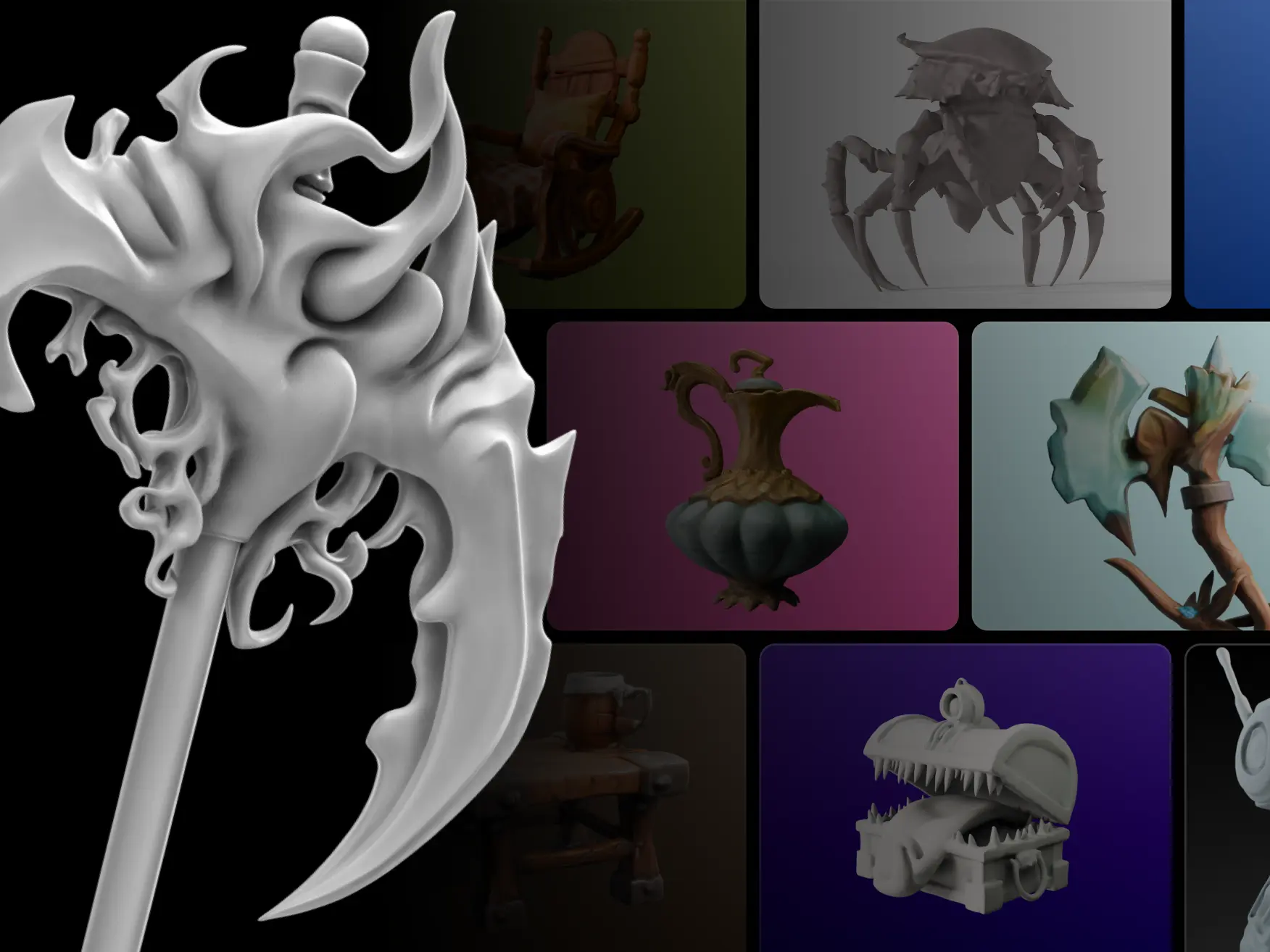
Intricate geometry details

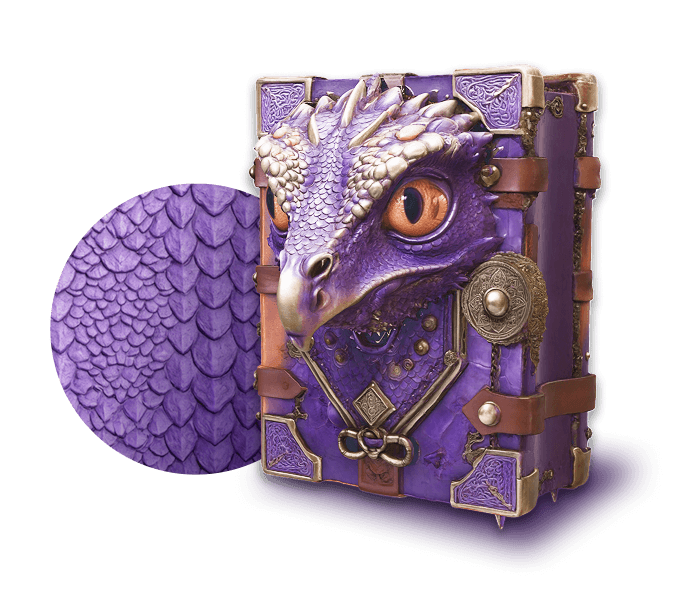
Preserve complex geometric structures during conversion with our AI technology. Experience breathtaking realism with intricate mesh details, ensuring your 3D models maintain the precision of their original 2D images.

Intricate geometry details
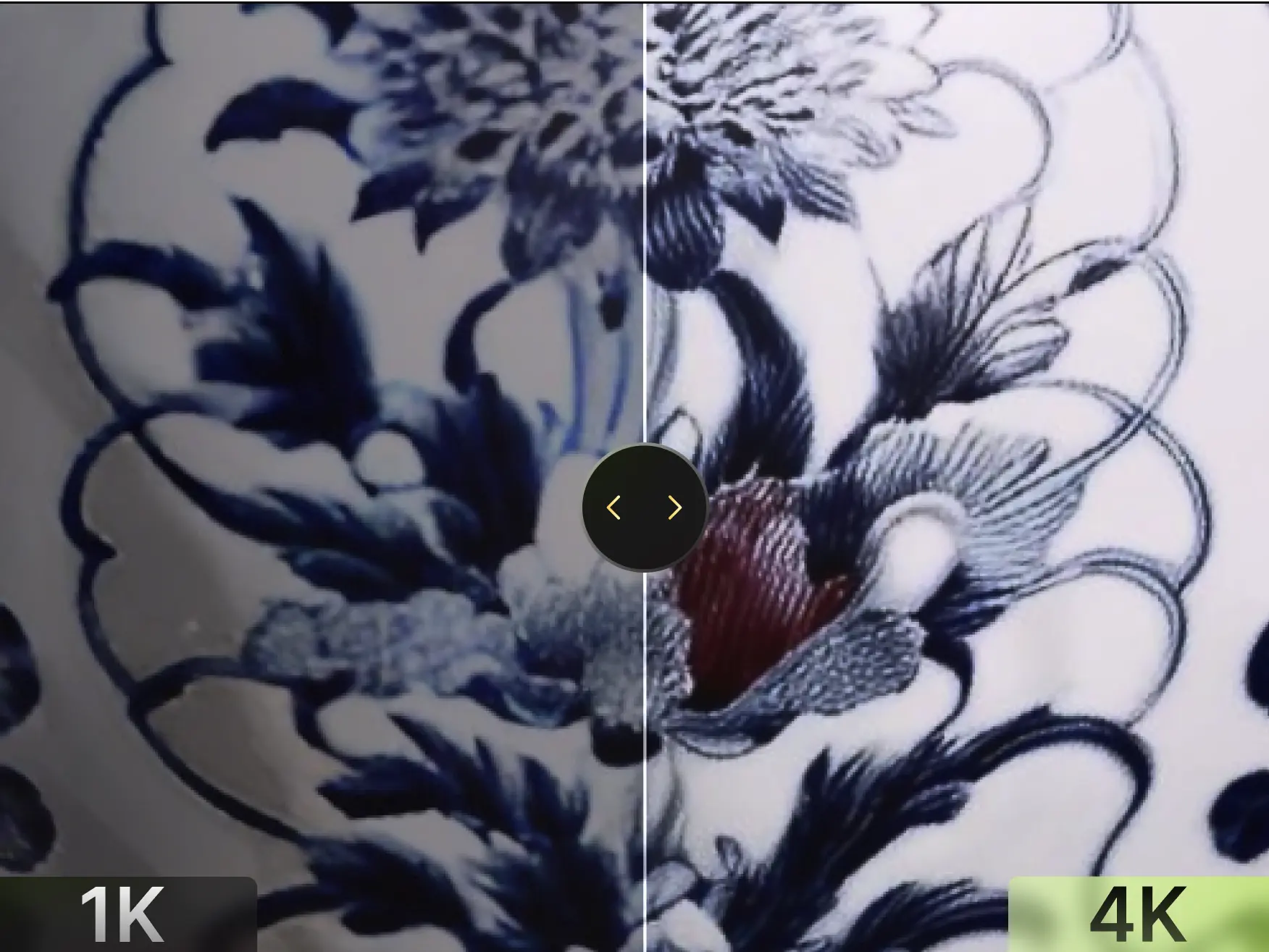
PBR textures built for production

PBR textures built for production

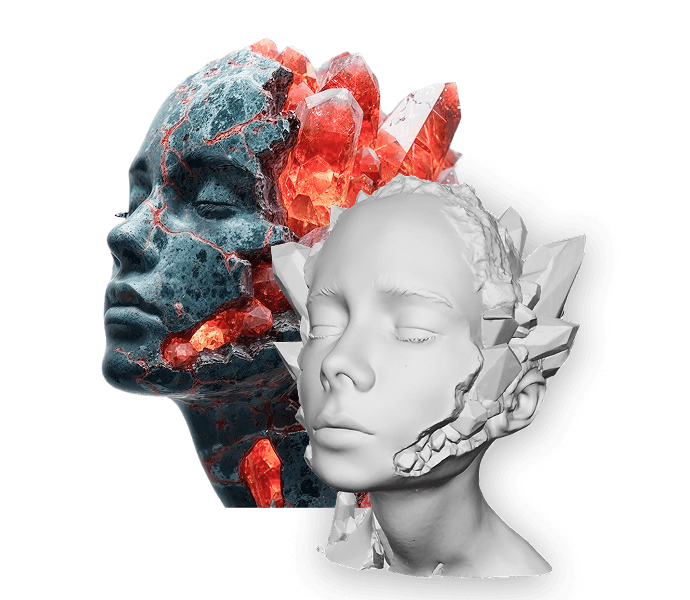
Experience superior de-lit texture processing that separates lighting from albedo map. Enjoy pure, high-fidelity textures with preserved color accuracy that brings your 3D assets to life in any environment.

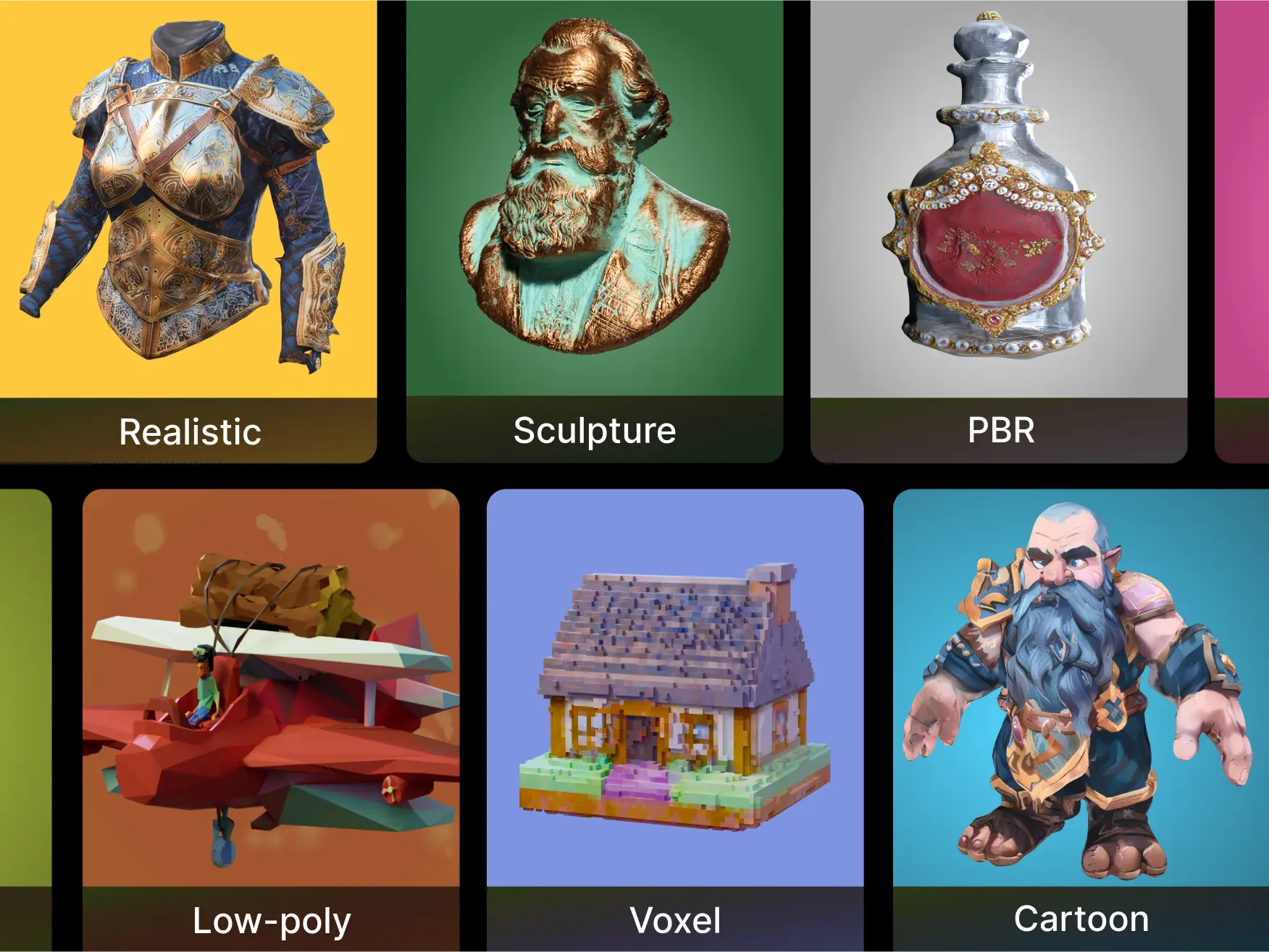
Wide range of styles

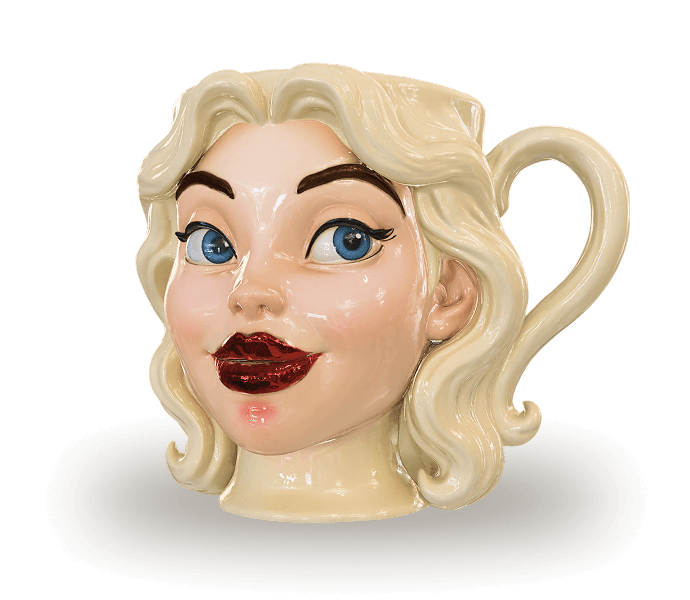
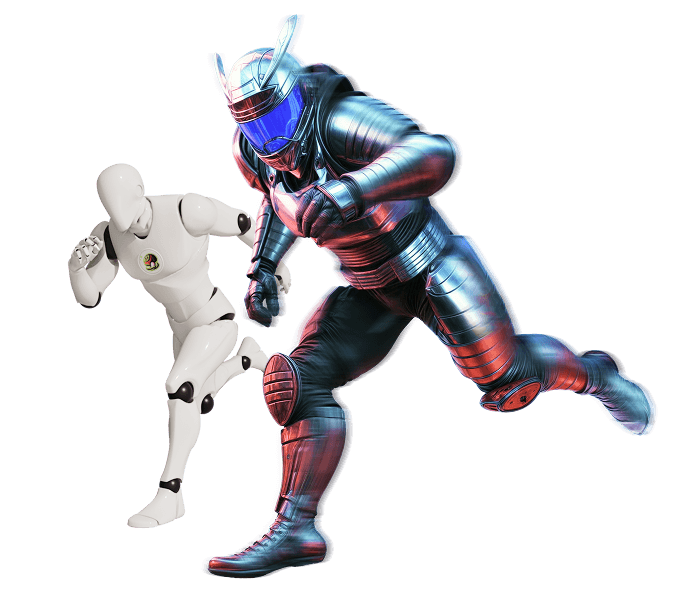
Convert everything from photorealistic characters to stylized props without quality loss. Our versatile tool handles diverse artistic styles, preserving the unique aesthetic of each 3D model regardless of design approach.

Wide range of styles

Who Uses Meshy to Convert to STL?

STL is the hand-off format for slicers. These are the teams that bring JPG models into Meshy and send them out print-ready.

3D Printing Hobbyists

Turn OBJ, FBX, or 3MF models into clean STL, and fix scale or orientation before a print run.

Tabletop and Miniature Makers

Prepare figurines and tabletop models for resin printers, where a watertight, correctly scaled STL decides whether the print survives.

Engineering and Prototyping

Convert CAD exports and scanned parts to STL for jigs, fixtures, and functional prototypes on FDM or resin machines.

Education and Makerspaces

Give students and shared workshops one printable format that opens in every slicer, with no CAD licence required.

Why Choose Meshy for Converting Images to 3D?

Turning an image into 3D usually means hours of manual modeling, a flat 2.5D heightmap, or a photogrammetry rig with dozens of overlapping shots. Meshy's AI builds true geometry from a single image — with volume, texture and editable output in minutes.

Comparison: manual 3D modeling, 2.5D relief converters, photogrammetry apps, and Meshy's AI image to 3D converter.
Manual Modeling
2.5D Relief Tools
Photogrammetry Apps
Meshy
Full 3D model from one image
No
No
No
Yes
No modeling skills needed
No
Yes
No
Yes
Ready in minutes
Hours–days
Yes
Hours–days
Yes
Edit before exporting
Yes
No
Yes
Yes
No software to install
No
Yes
No
Yes
Free to start
Yes
Yes
No
Yes

Columns describe typical tools in each category (e.g. Blender for manual modeling, lithophane-style converters for 2.5D relief, multi-photo apps for photogrammetry); exact capabilities vary by product.

How Meshy Converts JPG to STL

Every image source runs the same reconstruction pipeline: analyse the picture, rebuild a mesh, clean it up, then export.

01

Analyse the image

Meshy reads your JPG upload and estimates silhouette, depth cues, and surface detail for the reconstruction.

02

Reconstruct the mesh

A single image is rebuilt into a textured triangle mesh in the cloud rather than converted by a local file parser.

03

Clean up and normalise

Topology is simplified, normals are recomputed, and the model is scaled to suit the STL target.

04

Export to STL

The finished model is written as STL with STLExporter, ready to download.

How to Convert JPG to STL

Upload a(an) JPG File

Frequently Asked Questions

Meshy's JPG-to-STL converter is built for fast 3D workflows: upload an image, Meshy generates a 3D model from it, and you export an STL file for your 3D printing workflow. Everything runs directly in your browser — no installation required. Not sure which format fits your project? Read our 3D file formats guide.

Free users can convert one file at a time. Pro users can process multiple files in a single session with faster turnaround. If you need batch conversion for a larger pipeline, check out Meshy's API for programmatic access.

Yes. Your files are processed locally in your browser and are not sent to or stored on external servers. If you're working with sensitive or proprietary models, see our Privacy Policy for full details.

Most JPG-to-STL generations complete in a short time. The duration depends on the source image, the desired level of detail, and the complexity of the generated mesh. If it takes longer, try a clearer subject, a smaller file, or a simpler perspective.

Before converting a JPG file to STL, keep three things in mind: First, the image should have clear contours and as little distracting background as possible. Second, you should check the STL file before printing in your slicer — wall thickness, scale, and closed geometry. Third, STL does not preserve colors, materials, or textures — for colored 3D assets, formats like GLB are better suited.

The accuracy of JPG-to-STL conversion depends heavily on the source image. Clear contours, good lighting, and a clear perspective deliver better results. Meshy interprets your 2D image as 3D geometry and exports it as an STL file. Check the file before printing in your slicer, especially for production-critical parts.

After download, check: 1. Does the STL file open in your slicer or 3D viewer? 2. Are scale and orientation correct? 3. Is the geometry watertight and 3D-print ready? 4. Are there missing faces, very thin areas, or unexpected artifacts?

Yes. You can review your STL file in the 3D viewer and use it in your wider Meshy workflow. For surfaces, materials, or textures, choose a format like GLB depending on your target — or continue editing your model in Meshy.

If conversion fails, first check whether your JPG file opens in another program. Shrink the file if it's too large, and upload a clear image with a recognizable main subject. If it still doesn't work, try PNG or JPEG as an alternative.

Start Converting Your 3D Files Now

Fast, free, and secure — convert between OBJ, FBX, STL, GLB, and more right in your browser.